Knowledge base

iTunes: How to share music between different user accounts on a single computer

Posted in Apple iTunes

Share your music with multiple users on one computer

If you're trying to share music between multiple computers, follow these steps.

If you're using Mac OS X, follow these steps:

  1. Quit iTunes.
  2. Go to your iTunes Media folder. By default, it's in ~/Music/iTunes. (This folder may be named iTunes Music if you created your iTunes library in iTunes 9 or earlier.) 
    Note: "~" represents your Home folder. Other users on your computer can't access these locations.
  3. Drag the iTunes Media folder to a public location. For example, you could move it to the Public folder in your Home folder (~/Public) or to a location outside your Home folder that other users can access (/Users/Shared).
    Important: Don't move the iTunes folder, the iTunes library file, or the iTunes library.xml file.
  4. Open iTunes.
  5. Choose iTunes > Preferences.
  6. Click Advanced.
  7. Click the Change button.
  8. In the window that opens, go to your iTunes Media folder.
  9. Click Choose or Open.

If you're using Windows, follow these steps:

  1. Quit iTunes.
  2. Locate your iTunes Media folder. (This folder may be named iTunes Music if you created your iTunes library in iTunes 9 or earlier). By default, it's in these locations:
    • Windows XP and Windows 2000: \Documents and Settings\username\My Documents\My Music\iTunes
    • Windows Vista, Windows 7, and Windows 8: \Users\username\Music\iTunes
    • Note: The Windows version of iTunes doesn't copy all the music you add to your iTunes library to your iTunes Media folder. To copy the Music in your library to your iTunes Media Folder (if you have enough hard drive space), choose Consolidate Library from File > Library > Organize.
  3. Drag the iTunes Media folder to a public location. You can use one of these public folders:
    • Windows XP and Windows 2000: \Documents and Settings\All Users\Documents\My Music
    • Windows Vista, Windows 7, and Windows 8: \Users\Public\Public Music
    • Important: Don't move the iTunes folder, the iTunes library file, or the iTunes library.xml file.
  4. Open iTunes.
  5. Choose Edit > Preferences.
  6. Click Advanced.
  7. Click the Change button.
  8. In the Change Music Folder Location dialog, navigate to your iTunes Media folder.
  9. Click OK.

Repeat these steps for each user that you want to share music with. If multiple users on your computer are storing music in the same public folder, duplicate song files may appear if a user imports music from a CD that another user already imported.

Read Full Article

iTunes in the Cloud, iTunes Match, and iTunes Radio availability

Posted in Apple iTunes

iTunes in the Cloud availability by country

The table below shows you what types of purchases you can download again in each country. If a certain type of content can be downloaded again in that country, a ✓ will appear in the country's row for that content type. If music, apps, or books are available in your country, you can enable Automatic Downloads on your computers and iOS devices to automatically download new purchases made from other devices. This feature is only available for music, apps, and books.

Country Music Music Videos Movies1 TV Shows Apps Books

Albania
        ✓ ✓

Algeria
        ✓ ✓

Angola
        ✓ ✓

Anguilla
✓ ✓ ✓   ✓ ✓

Antigua & Barbuda
✓ ✓ ✓   ✓ ✓

Argentina
✓ ✓ ✓   ✓ ✓

Armenia
✓ ✓ ✓   ✓ ✓

Australia
✓ ✓ ✓ ✓ ✓ ✓

Austria
✓ ✓ ✓    ✓ ✓

Azerbaijan
✓ ✓ ✓   ✓ ✓
Country Music Music Videos Movies1 TV Shows Apps Books

Bahamas
✓ ✓ ✓   ✓ ✓

Bahrain
✓ ✓ ✓   ✓ ✓

Barbados
✓ ✓     ✓ ✓

Belarus
✓ ✓ ✓   ✓ ✓

Belgium
✓ ✓ ✓    ✓ ✓

Belize
✓ ✓ ✓   ✓ ✓

Benin
        ✓ ✓

Bermuda
✓ ✓ ✓   ✓ ✓

Bhutan
        ✓ ✓

Bolivia
✓ ✓ ✓   ✓ ✓

Botswana
✓ ✓ ✓   ✓ ✓

Brazil
✓ ✓ ✓   ✓ ✓

British Virgin Islands
✓ ✓ ✓   ✓ ✓

Brunei
✓ ✓ ✓   ✓ ✓

Bulgaria
✓ ✓  ✓   ✓ ✓

Burkina-Faso
✓ ✓     ✓ ✓
Country Music Music Videos Movies1 TV Shows Apps Books

Cambodia
✓ ✓ ✓   ✓ ✓

Canada
✓ ✓ ✓ ✓ ✓ ✓

Cape Verde
✓ ✓ ✓   ✓ ✓

Cayman Islands
✓ ✓ ✓   ✓ ✓

Chad
        ✓ ✓

Chile
✓ ✓ ✓   ✓ ✓

China
        ✓ ✓

Colombia
✓ ✓ ✓   ✓ ✓

Congo, Republic of
        ✓ ✓

Costa Rica
✓ ✓ ✓   ✓ ✓

Croatia
        ✓ ✓

Cyprus
✓ ✓  ✓   ✓ ✓

Czech Republic
✓ ✓ ✓   ✓ ✓

Denmark
 ✓   ✓    ✓ ✓

Dominica
✓ ✓ ✓   ✓ ✓

Dominican Republic
✓ ✓ ✓   ✓ ✓
Country Music Music Videos Movies1 TV Shows Apps Books

Ecuador
✓ ✓ ✓   ✓ ✓

Egypt
✓ ✓ ✓   ✓ ✓

El Salvador
✓ ✓ ✓   ✓ ✓

Estonia
✓ ✓  ✓   ✓ ✓

Fiji
✓ ✓ ✓   ✓ ✓

Finland
 ✓    ✓   ✓ ✓

France
✓ ✓ ✓  ✓  ✓ ✓

Gambia
✓ ✓ ✓   ✓ ✓

Germany
✓ ✓  ✓  ✓ ✓ ✓

Ghana
✓ ✓ ✓   ✓ ✓

Greece
✓ ✓ ✓    ✓ ✓

Grenada
✓ ✓ ✓   ✓ ✓

Guatemala
✓ ✓ ✓   ✓ ✓

Guinea-Bissau
✓ ✓ ✓   ✓ ✓

Guyana
        ✓ ✓
Country Music Music Videos Movies1 TV Shows Apps Books

Honduras
✓  ✓ ✓   ✓ ✓

Hong Kong
✓ ✓ ✓   ✓ ✓

Hungary
✓   ✓   ✓ ✓

Iceland
        ✓ ✓

India
✓ ✓ ✓   ✓ ✓

Indonesia
✓ ✓ ✓   ✓ ✓

Ireland
✓ ✓ ✓   ✓ ✓

Israel
✓ ✓ ✓   ✓ ✓

Italy
✓ ✓ ✓    ✓ ✓

Jamaica
        ✓ ✓

Japan
✓ ✓  ✓    ✓ ✓

Jordan
✓ ✓ ✓   ✓ ✓

Kazakhstan
✓ ✓     ✓ ✓

Kenya
✓ ✓     ✓ ✓

Kuwait
        ✓ ✓

Kyrgystan
✓ ✓     ✓ ✓
Country Music Music Videos Movies1 TV Shows Apps Books

Laos
✓ ✓ ✓   ✓ ✓

Latvia
✓ ✓ ✓   ✓ ✓

Lebanon
✓   ✓   ✓ ✓

Liberia
        ✓ ✓

Lithuania
✓ ✓  ✓   ✓ ✓

Luxembourg
✓ ✓  ✓   ✓ ✓

Macau
✓ ✓ ✓   ✓ ✓

Macedonia
        ✓ ✓

Madagascar
        ✓ ✓

Malawi
        ✓ ✓

Malaysia
✓ ✓ ✓   ✓ ✓

Mali
        ✓ ✓

Malta, Republic of
✓ ✓ ✓    ✓ ✓

Mauritania
        ✓ ✓

Mauritius
✓ ✓ ✓   ✓ ✓

Mexico
✓ ✓ ✓   ✓ ✓

Micronesia, Federated States of
✓ ✓ ✓   ✓ ✓

Moldova
✓ ✓ ✓   ✓ ✓

Mongolia
✓ ✓ ✓   ✓ ✓

Montserrat
        ✓ ✓

Mozambique
✓ ✓ ✓   ✓ ✓
Country Music Music Videos Movies1 TV Shows Apps Books

Namibia
✓ ✓ ✓   ✓ ✓

Nepal
✓ ✓     ✓ ✓

Netherlands
✓ ✓ ✓    ✓ ✓

New Zealand
✓ ✓ ✓   ✓ ✓

Nicaragua
✓ ✓ ✓   ✓ ✓

Niger
✓ ✓ ✓   ✓ ✓

Nigeria
✓ ✓     ✓ ✓

Norway
✓     ✓   ✓ ✓

Oman
✓   ✓   ✓ ✓

Pakistan
        ✓ ✓

Palau
        ✓ ✓

Panama
✓ ✓ ✓   ✓ ✓

Papua New Guinea
✓ ✓     ✓ ✓

Paraguay
✓ ✓ ✓   ✓ ✓

Peru
✓ ✓ ✓   ✓ ✓

Philippines
✓ ✓ ✓   ✓ ✓

Poland
✓       ✓ ✓

Portugal
✓ ✓  ✓   ✓ ✓
Country Music Music Videos Movies1 TV Shows Apps Books

Qatar
✓   ✓   ✓ ✓

Romania
        ✓ ✓

Russia
✓   ✓   ✓ ✓

St. Kitts & Nevis
✓ ✓ ✓   ✓ ✓

St. Lucia
        ✓ ✓

St. Vincent & The Grenadines
        ✓ ✓

Sao Tome e Principe
        ✓ ✓

Saudi Arabia
✓ ✓ ✓   ✓ ✓

Senegal
        ✓ ✓

Seychelles
        ✓ ✓

Sierra Leone
        ✓ ✓

Singapore
✓ ✓ ✓   ✓ ✓

Slovakia
✓ ✓ ✓   ✓ ✓

Slovenia
✓ ✓  ✓   ✓ ✓

Solomon Islands
        ✓ ✓

South Africa
✓ ✓ ✓   ✓ ✓

South Korea
        ✓ ✓

Spain
✓ ✓  ✓   ✓ ✓

Sri Lanka
✓ ✓ ✓   ✓ ✓

Suriname
        ✓ ✓

Swaziland
✓ ✓ ✓   ✓ ✓

Sweden
✓     ✓   ✓ ✓

Switzerland
✓ ✓  ✓   ✓ ✓
Country Music Music Videos Movies1 TV Shows Apps Books

Taiwan
✓ ✓ ✓   ✓ ✓

Tajikistan
✓ ✓ ✓   ✓ ✓

Tanzania
        ✓ ✓

Thailand
✓ ✓ ✓   ✓ ✓

Trinidad & Tobago
✓ ✓ ✓   ✓ ✓

Tunisia
        ✓ ✓

Turkey
✓ ✓ ✓   ✓ ✓

Turkmenistan
✓ ✓ ✓   ✓ ✓

Turks & Caicos
        ✓ ✓

Uganda
✓ ✓ ✓   ✓ ✓

Ukraine
✓  ✓  ✓   ✓ ✓

United Arab Emirates
✓ ✓ ✓   ✓ ✓

United Kingdom
✓ ✓ ✓ ✓ ✓ ✓

United States
✓ ✓ ✓ ✓ ✓ ✓

Uruguay
        ✓ ✓

Uzbekistan
✓ ✓     ✓ ✓

Venezuela
✓ ✓ ✓   ✓ ✓

Vietnam
✓ ✓ ✓   ✓ ✓

Yemen
        ✓ ✓

Zimbabwe
✓ ✓ ✓   ✓ ✓

1Some previously purchased movies may not be available in iTunes in the Cloud.

Read Full Article

iBooks: Viewing, syncing, saving, and printing PDFs on iPhone, iPad, and iPod touch

Posted in Apple iTunes

Using Sync Collections with PDFs in iBooks

If you turned on Sync Collections, iBooks will keep your PDFs (and non–iBooks Store books) in the same collections across all your iOS devices and Mac (if you're using OS X Mavericks). For example, if you have the same PDF on all your devices, when you move that PDF to your Sci-Fi collection in iBooks on your iPhone, that PDF will appear in your Sci-Fi collection the next time you open iBooks on your iPad.

If you delete a PDF (or non–iBooks Store book) while you have Sync Collections turned on, it only affects the copy on the device. For example, if you delete a copy of the PDF from your iPad, it will still be on your iPhone.

For more information about iBooks and the iBooks Store, see the frequently asked questions and how to sync iTunes Digital Booklets to your iOS device.

Read Full Article

iTunes for Windows: Troubleshooting missing menus and text in iTunes

Posted in Apple iTunes

Menus present:

Menus missing:

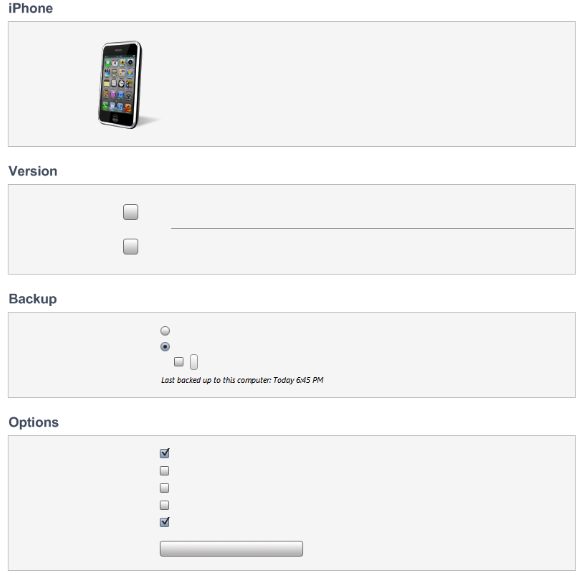
Additionally, text may be missing from the Settings screen for any device connected to iTunes as shown below:


This issue may occur if some of your default Windows fonts have been removed from your computer. To display this text on Windows Vista or Windows 7, iTunes uses fonts from the Segoe UI font family. To determine if these fonts are in place:

  1. From the Start menu, click Control Panel.
  2. Open the Fonts control panel.
  3. Find the Segoe UI font family in the list, and double-click it to open it.
  4. On the Segoe UI font family details page, ensure that Segoe UI Bold and Segoe UI Regular are present.  

If you find that the Segoe UI font family is missing, or that either Segoe UI Bold or Segoe UI Regular are missing, then you will need to reinstall the Segoe UI font family from your Windows installation disc.

Read Full Article

iTunes: Unable to sync photos

Posted in Apple iTunes

Learn more

Verify that photos are in a compatible format. On a Mac, these file formats will sync from your iPhoto Library to your device: JPG, JPEG, TIFF, PICT, GIF, PNG, JPG2000 or JP2, PSD, SGI, and BMP.

On Windows, these file formats will sync to your device: JPG , JPEG, BMP, GIF, TIF, TIFF, SGI, and PNG.

Photos without extensions may not appear on your device.

Read Full Article

Volume Purchase Program: Cache alert

Posted in Apple iTunes

Information about products not manufactured by Apple, or independent websites not controlled or tested by Apple, is provided without recommendation or endorsement. Apple assumes no responsibility with regard to the selection, performance, or use of third-party websites or products. Apple makes no representations regarding third-party website accuracy or reliability. Risks are inherent in the use of the Internet. Contact the vendor for additional information.

Read Full Article